Practical advice
QR codes on business cards: placement and pre-print checks
Choose where your business card QR code should lead, check scanning and review AI-created artwork before ordering your printed run.
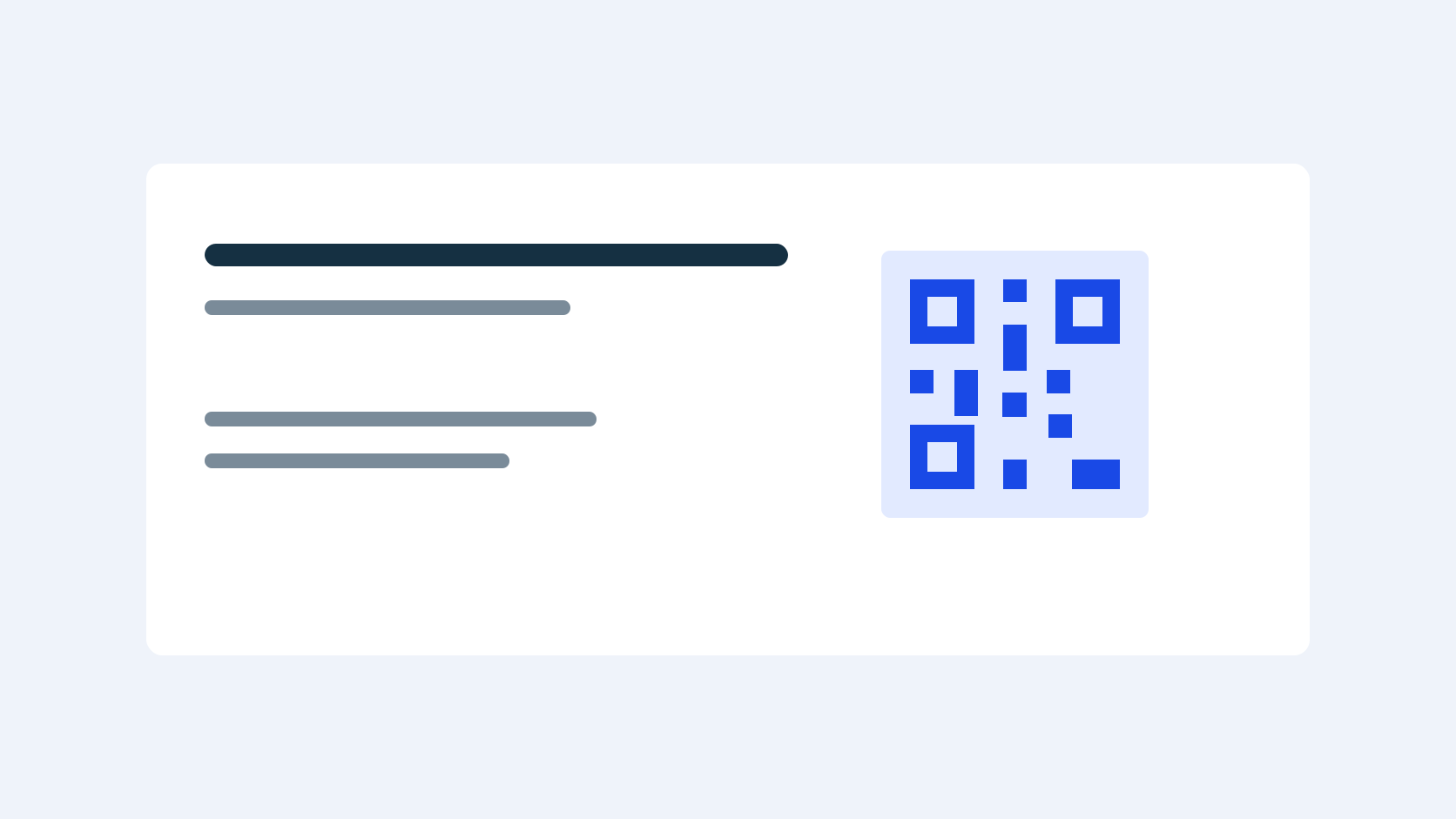
When is a QR code useful?
A code can take someone to a booking page, menu, portfolio, website or contact page without typing an address. Start by choosing one action for the recipient. If a readable phone number is all you need, a code may be unnecessary: it takes up valuable space on a small card.
Choose a stable destination
Open the address on a phone before creating the code. Check that the page loads without a login, works on mobile and does not depend on a temporary link. If you may move the page later, plan a redirect. Do not use private links that are not intended for card recipients.
Explain what the code opens
Place a short label beside the code, such as ‘Book online’, ‘Menu’ or ‘Portfolio’. Do not replace every visible contact detail with it: recipients should know who the card belongs to and how to contact you without scanning. On a two-sided card the code can go on the back while the name and main contact remain on the front.
Place the QR code for print
Leave a clear quiet zone at least four modules (small squares) wide on every side of the code, and enough contrast between dark modules and a light background. Keep text, patterns and photographs out of that zone, preserve the corner markers and leave space from the card edge. There is no single size that guarantees every code will work: the result depends on complexity, printing, lighting and the camera.
What to know about AI-created designs
An image generator may draw a convincing but non-functional QR code or alter a code supplied as a reference. This service does not send a customer’s existing file directly to print, and references may be reinterpreted. A code’s appearance is therefore not proof that it works; do not order a run if you cannot verify the final result.
Check before ordering
- Open the destination link and check that it is correct.
- Scan the actual final preview with several phones without excessive enlargement, and open the suggested address.
- Where possible, check a printed sample at its actual size in different lighting and with different cameras.
- Check contrast, the quiet zone and distance from the trim. If scanning is unreliable, change the design and test again.
- Keep at least one readable contact method on the card for people who do not scan the code.
Scanning a screen does not guarantee that the printed card will scan: reflections, size and image quality can change the result. Ask separately whether a sample print is available and on what terms; it is not automatically included in an online order.
Frequently asked questions
Is checking the code on screen enough?
It is a useful first check, but paper, scale and finish can affect scanning. Where possible, check a physical sample as well.
Does the AI designer guarantee a working code?
No. A code rendered as an image may be incorrect. Before ordering, verify separately that the final version scans and opens the intended destination.